
Product Information
Features
Model: GZL 01
Wireless Connection: Bluetooth
Compatibility: Android, iOS, PC, Switch (All Models)
Power Mode: Rechargeable battery
Connection Type: Wireless and Wired
Power Specifications
Controller power specifications:
Charging: LED5 is solid.
Low Power Sleep: LED1-LED4 indicators flash; automatically enters sleep mode after 5 minutes of inactivity.
Shutdown: Press and hold the HOME button for 5 seconds.
MACRO Programming Mode
To enter programming mode:
Press and hold the M1 or M2 button to begin programming, and then press the Select or Start button.
Follow the on-screen instructions to program the buttons as needed.
Wireless Pairing
Mode Pairing Method LED Status
Press and hold the pairing button for 2 seconds and assign LED1-LED4 to the player.
Press and hold Android X, then press and hold the pairing button for 2 seconds. LED2 is always on.
Press and hold iOS A, then press and hold the pairing button for 2 seconds. LED3 is always on.
Press and hold Xinput B, then press and hold the pairing button for 2 seconds. LED1+LED4 are always on.
To pair the Switch, open the Switch main interface and click "Controller icon -> Change holding/order -> Enter pairing interface." Once the controller is paired with the host computer, you can then press the HOME button and the controller will automatically reconnect to the host computer.
2.4G Receiver Connection
Mode Connection Method
PC (X-input)
Plug the receiver into your computer's USB port and press and hold the button on the receiver for 2 seconds to enter pairing mode.
When the receiver light flashes quickly, press the Y + pairing button to pair the receiver.
When the receiver light flashes slowly, short-press the HOME button to reconnect.
PC (Switch)
In PC (Xinput) mode, press Select + Start for 3 seconds to switch.
Android (Supports 11.0 and above)
In PC (Switch) mode, press Select + Start for 3 seconds to switch.
LED Status
LED2 is always on
LED1 is always on
LED3 is always on
Wired Connection
Mode Connection Method LED Status
A Switch Wired TYPE-C data cable is automatically recognized when the player plugs it into the USB port of Switch Assign LED1-LED4.
PC (Xinput) A wired TYPE-C data cable is automatically recognized when it plugs it into the USB port of the PC. LED2 is always on.
PC (Switch) In PC (Xinput) mode, press Select + Start for 3 seconds to turn on LED1. LED1 is always on.
Android (supports 11.0 and above) In PC (Switch) mode, press Select + Start for 3 seconds to turn on LED3. LED3 is always on.
MACRO Programming Mode
Programming Mode Settings
Simultaneously press and hold M1 or M2, then press Select. Simultaneously press the buttons to be programmed, then press M1 or M2 to exit.
Sequentially press and hold M1 or M2, then press Start. Press the buttons to be programmed, then press M1 or M2 to exit.
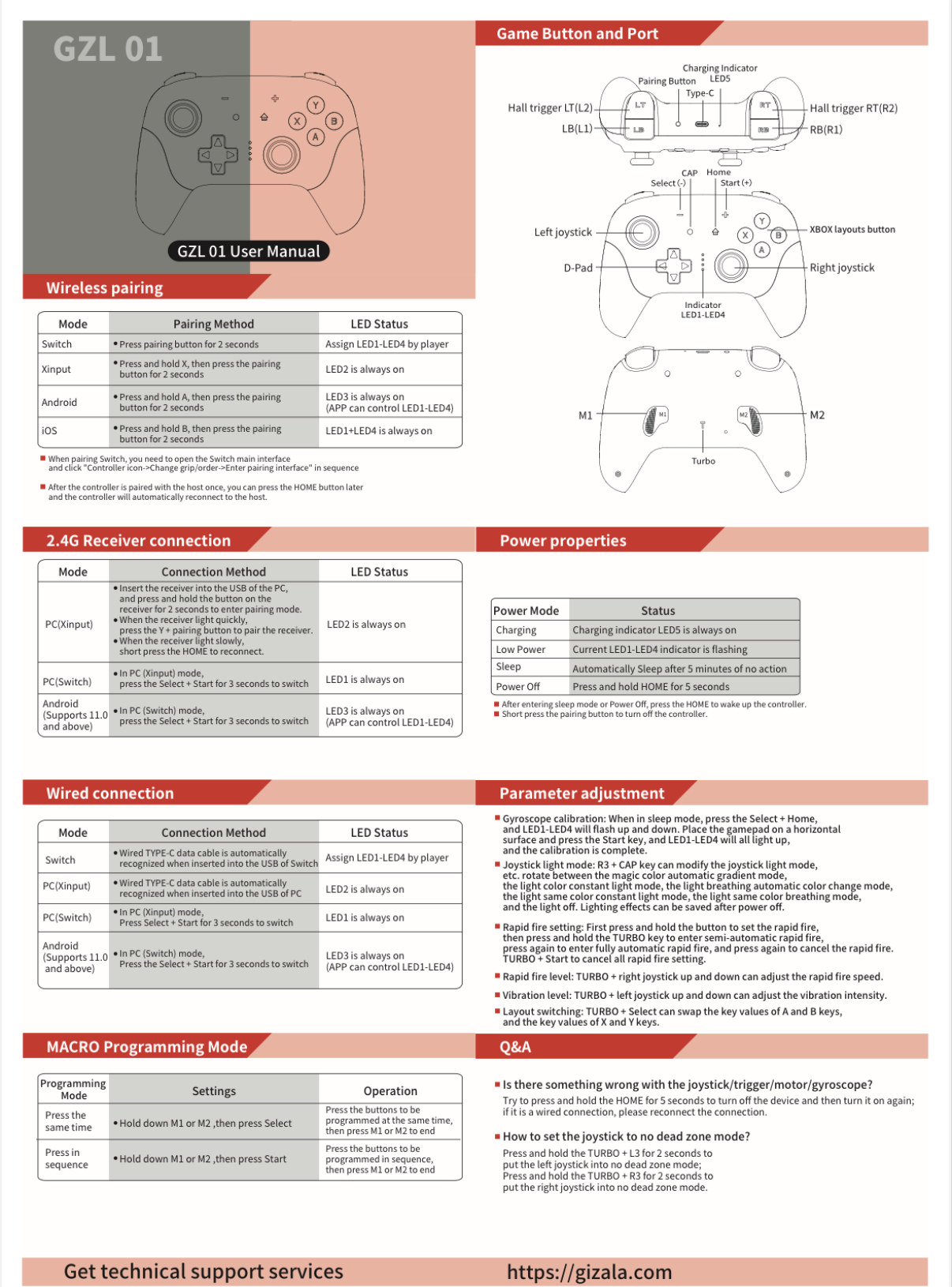
Gaming Button and Port
Power Features
Power Mode
Charging
Sleep
Power Off
Low Power
Status
Charging indicator LED5 is always on
Automatically enters sleep mode after 5 minutes of inactivity
Current LED1-LED4 indicators are flashing
Press and hold the HOME button for 5 seconds.
After entering sleep mode or power off mode, press the HOME button to wake the controller.
Short-press the pairing button to turn off the controller.
Parameter Adjustment
Gyroscope Calibration: In sleep mode, press the Select + Home buttons; LED1-LED4 will flash up and down. Place the gamepad on a horizontal surface and press the Start button; all LED1-LED4 will light up, and calibration is complete.
Joystick Light Mode: Press R3 + CAP to change the joystick light mode, etc. You can switch between magic color automatic gradient mode, constant light mode, breathing automatic color changing mode, constant light mode, breathing same color mode, and off.
Rapid Fire Setting: Press and hold the button to set rapid fire first, then press and hold the TURBO button to switch to semi-automatic rapid fire, press again to switch to fully automatic rapid fire, and press again to cancel rapid fire.
Rapid Fire Level: The rapid fire speed can be adjusted by moving TURBO + the right joystick up and down.
Vibration level: Vibration intensity can be adjusted by moving the TURBO + left joystick up and down.
Layout change: TURBO + Select can change the key values of the A and B keys and the key values of the X and Y keys.
Get technical support;
gizala@gizala.com.tr

Until 14:00 today, your order will be delivered to the cargo on the same day.

During payment transactions on our site, data is encrypted with a 256BIT SSL certificate.

You can return the products you have purchased for 14 days.

You can contact us for all your questions, comments and suggestions. 0212 598 47 47
